July 8th, 2025
BFG Release Notes 2025.07.2
Features
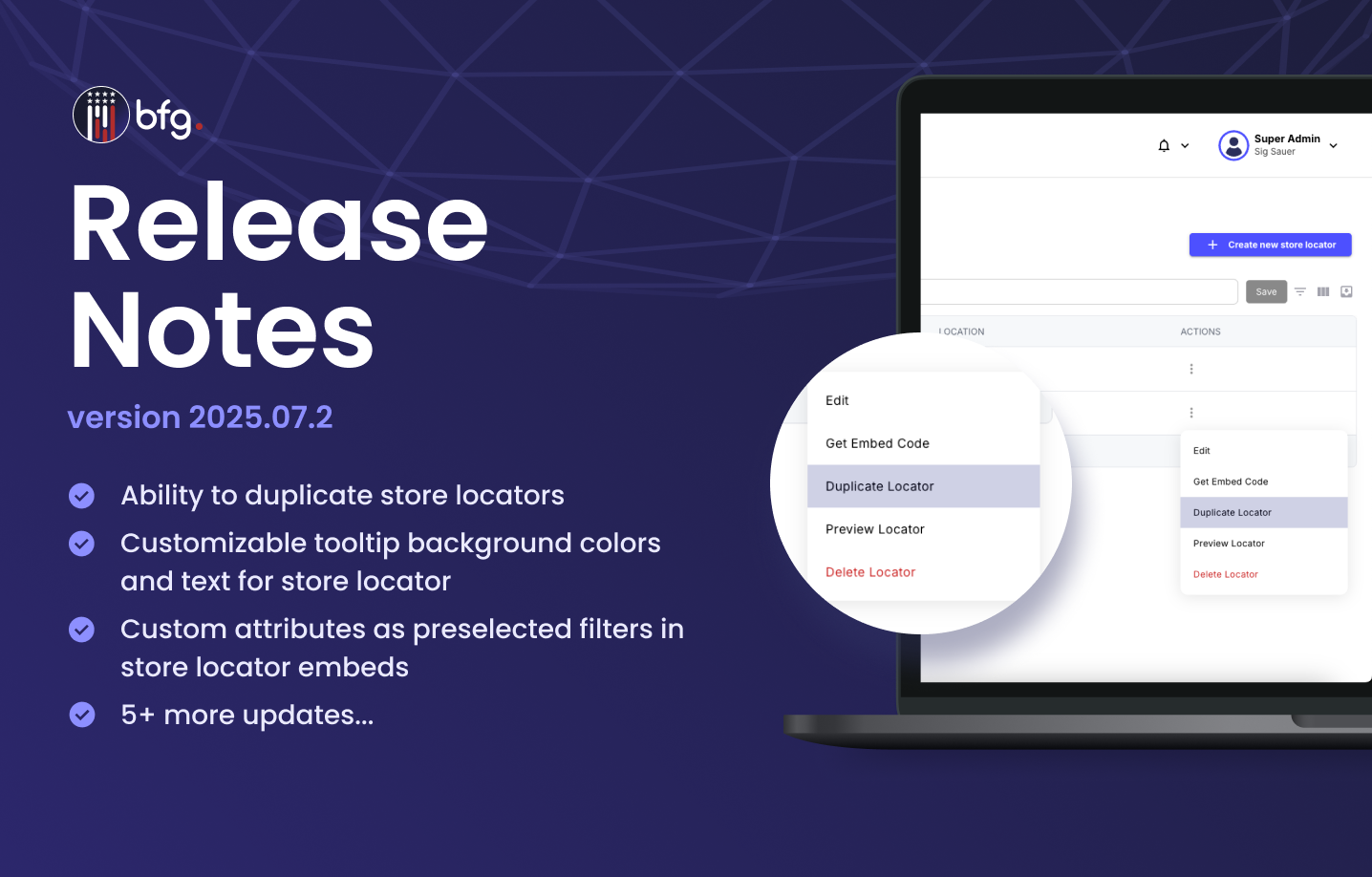
Ability to duplicate store locators
On the Store Locator List page (Settings > Store Locator), you can now duplicate a store locator, including all of its configuration and display settings.
To duplicate a locator, click its More options icon, and then select Duplicate Locator. The new locator will include all original settings for quick setup and editing.

Enhancements
Setting to control stock visibility on store locators
On the Store Profile page (Stores > Stores > View Store), you can now use the Show Stock Availability toggle to show or hide stock levels on your public store locator.
When enabled (default): Displays stock status such as In Stock, Low Stock, or Out of Stock.
When disabled: Hides stock status and displays the label Call for Availability instead.
This setting supports dealer privacy preferences and manufacturer agreements. By default, stock information remains visible unless you choose to turn it off.

Customizable tooltip background colors and text for store locators
On the Store Locator Configuration page (Settings > Store Locator > Create new store locator or Edit), you can now edit your store locator’s tooltip background colors and text.

Locked preselected tag and type filters in store locators
When you specify a tag and type as preselected filters in the Generated Embed Code window (Settings > Store Locator > More options icon > Get Embed Code), those filters are now locked in the All Filters dropdown on the public store locator. Users can see the selected filters but can’t modify or remove them.

Hide tags and types from All Filters dropdown in the store locator when Show On Map is disabled
When you turn off the Show on Map toggle on the Edit Store Tag or Edit Store Type page (Stores > Tags or Types > Edit), the corresponding tag or type is now hidden from the All Filters dropdown in the public store locator.
Custom attributes as preselected filters in store locator embeds
In the Generated Embed Code window (Settings > Store Locator > More options icon > Get Embed Code), you can now specify custom attributes defined on the Store Profile page (Stores > Stores > View Store) as preselected filters for your store locator.
For example, in the Generated Embed Code window for a general type store locator, enter your custom attribute in the data-custom_attributes field, enclosed in quotation marks ("").

In the Generated Embed Code window for a product type store locator, enter your custom attribute in the script.dataset.custom_attributes field, enclosed in quotation marks ("").

Optional friendly name for company and store information
You can now add an optional friendly name to companies and stores to display a name that differs from the official business or licensee name.
Where you can set it:
Friendly Name field on the Company Profile page (Settings > Company Manager > Edit Company)
Friendly Name field on the Store Profile page (Stores > Stores > View Store > Edit)
Where it appears:
Friendly Name column and in exported files on the Stores page (Stores > Stores)
Store Profile page (Stores > Stores > View Store)
Public store locator (Settings > Store Locator > More options icon > Preview Locator)
Friendly Name column on the Upload a CSV page after attaching a file (Stores > Import Stores)
Use this name when you want the store or company to be displayed under a name that is more recognizable to customers.
Improvements to store inventory filtering
When you filter products by store on the Store Inventory page (Products > Store Inventory), products with no inventory records now appear in the search results.
Import Error section on the Import Details page
In the Import Error section of the Import Details page (Stores > Import Stores > View History > View Details), you can now view detailed error information when a store CSV import contains issues.

Resolved issues
Fixed an issue where users were immediately logged out after signing in if their previously selected company had been deleted.