May 27th, 2025
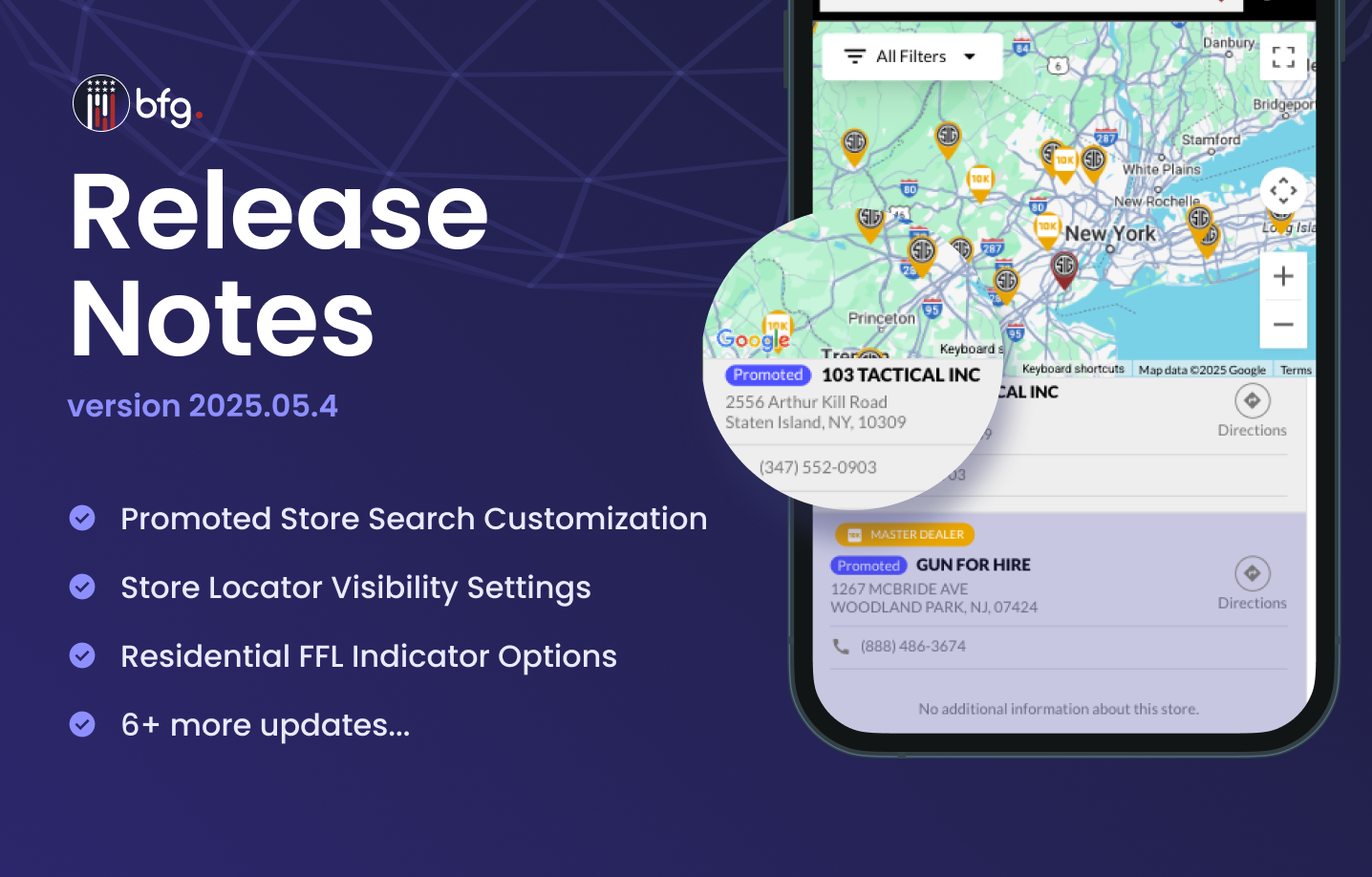
BFG Release Notes 2025.05.4
Features
Customize search results of promoted stores in a Store Locator
On the All Promoted Stores page (Stores > Promoted Stores), you can now create and manage promoted stores to customize how stores and products appear in the search results of your public store locators.
On this page, you can:
Create and delete promoted stores
Schedule when a promoted store is active
Set the display order of promoted stores in search results
Choose whether promoted stores appear in regional or global search results
Manage Store Locator visibility on the Stores page
You can now control whether a store appears in your public store locator’s search results on the Stores page. After selecting a store’s checkbox and clicking the Store Locator button, select one of the following options:
Show on Store Locator
Hide from Store Locator
Also, a Store Locator Visibility filter is now added on the Stores page to help you view displayed and hidden stores.
Residential FFL store indicator and visibility options
On a store’s edit page (Stores > Stores > View > Suggest an edit), you can now select the Residential Store checkbox to label the store as a residential Federal Firearms License (FFL) store. Residential FFL stores refer to FFL holders who operate their firearm-related business from a home-based location, rather than from a commercial storefront.

To control whether a residential store appears in your public store locator’s search results, you can select the following checkboxes on the Store Locator Configuration page (Settings > Store Locator > Edit):
Show Residential Indicator
Hide Residential Stores

Enhancements
Backend validation of store and product links in a Store Locator
BFG now includes automated link validation to ensure store and product URLs in the store locator remain active and reliable. A scheduled background job routinely checks these links and flags any that return invalid responses (e.g., 400, 404, or 5xx errors). If a link is invalid, it will not be displayed on the store locator.
BFG and brand agreement related enhancements
Support for uploading signed terms and conditions
You can now upload your signed terms and conditions in PDF format by doing one of the following:
Brand level: On the Create a New Company or Company Profile pages (Settings > Company Manager), select the Signed BFG Terms and Signed Brand Terms checkboxes:
Store level: Alternatively, on the Store Profile page (Stores > Stores > View), click Signed Brand Terms and select the Signed Brand Terms checkbox.
Note: Selecting the Signed BFG Terms checkbox on the Create a New Company or Company Profile pages will display a corresponding read-only checkbox on each store’s Store Profile page.

BFG and brand agreement filter options on the Company Manager page and Stores page
On the Company Manager and Stores pages, you can now filter brands based on their signed terms and conditions using the following dropdown lists:
BFG Agreement Status
Brand Agreement Status
Brand account number, licensee name, and business name on the Store Profile page
On the Store Profile page (Stores > Stores > View), you can now view the following information:
Brand account number in the store’s section
Licensee name and business name in the Federal Firearms License section
Remove outdated product prices before a CSV file import
To ensure accurate pricing information, the following checkboxes are now added on the Upload a CSV page (Products > Import Products):
Clear all existing MAP prices before import
Clear all existing UPP prices before import
Clear all existing MTP prices before import
When these checkboxes are selected (default setting), existing prices in BFG will be cleared for importing new data from a CSV file. This removes outdated prices in the system for products no longer in your MAP feed.
Specifying a low stock threshold for product categories
When creating or editing a product category (Products > Categories), you can now specify a minimum stock level in the Low Stock Threshold field. This overrides the number specified in the Low Stock Threshold field on the Company Profile page (Settings > Company Manager > Edit Company).
Subheader (HTML) field for GENERAL type Store Locators
On the Store Locator Configuration page (Settings > Store Locator) for GENERAL type store locators, you can now use HTML to format the subheader in the Subheader (HTML) field. This lets you add rich text (like bold, italics, and lists) and embed images, icons, or videos.